Using the Bolus Wizard™ feature in Manual Mode
Device: MiniMed™ 780G insulin pump
Make sure you use your blood glucose (BG) meter to check your BG prior to delivering a correction or food and correction bolus. Do not enter a sensor glucose (SG) value in place of a BG meter reading. If you’re not using a compatible Accu-chek® Guide Link Meter, you can enter the BG reading manually on the Bolus Wizard™ screen.
Please note that the bolus amounts shown below are for illustration purposes only. Your bolus amounts will be different.
To deliver a normal bolus:
From the Home screen, press
 and then select
  .
.Select Bolus > Bolus Wizard.
The Bolus Wizard™ screen appears.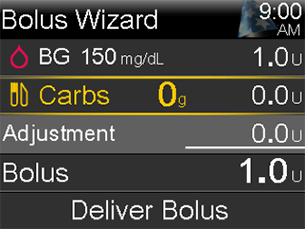
Note: The Bolus Wizard™ screen shows the most recent BG reading, if available. The BG will appear as dashes when no BG is available. A BG reading can be entered on the Bolus Wizard™ screen by selecting BG.
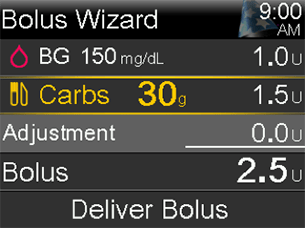
Select Carbs and use the Up arrow to enter the carb count for the meal, then press Select. For a correction bolus where no food was eaten, leave the carbs value at 0. The calculated bolus appears in the bolus field.
If a change to the bolus amount is needed, select Bolus and modify the bolus amount.
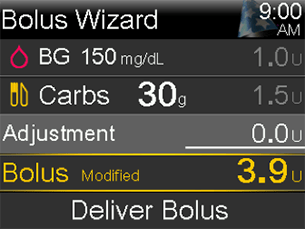
Select Deliver Bolus to start the bolus.
Note: The pump beeps or vibrates and a message appears when the bolus starts. The Home screen shows the bolus amount as it is being delivered. The pump beeps or vibrates when bolus delivery is complete.
Here's a tip: you can also access the Bolus Wizard™ screen by pressing the down arrow from the Home screen.
System support User guides and manuals